

Real-time coaching for any high-stakes conversation.
The private desktop coach that listens to your call and tells you exactly what to say next.
Live suggestion
They said: “Let's just start — what's on your mind today?”
Next line: “Sure — the headline first: here's the one outcome that matters most, and I'll fill in the rest as you ask.”
Three steps to your next best line
HOW IT WORKS
It's listening
To both sides of your call, in the background.
Press ⌘⇧↩
Whenever you want a suggestion.
⌘⇧↩︎Glance and go
Say it, stay present — nothing to open.
It's listening
To both sides of your call, in the background.
Press ⌘⇧↩
Whenever you want a suggestion.
⌘⇧↩︎Glance and go
Say it, stay present — nothing to open.
THEM —
Appreciate you carving out time this week.
YOU —
Let's pick up where we left off.
THEM —
“Your pricing is a lot higher than what we're paying today.”
Coach
They said: “Your pricing is a lot higher than what we're paying today.”
Next line: “Fair — let's put that monthly cost next to what one missed close costs you this quarter.”
SIMULATED CALL — ILLUSTRATIVE
SEE IT LIVE
One glance. One line. Back to the call.
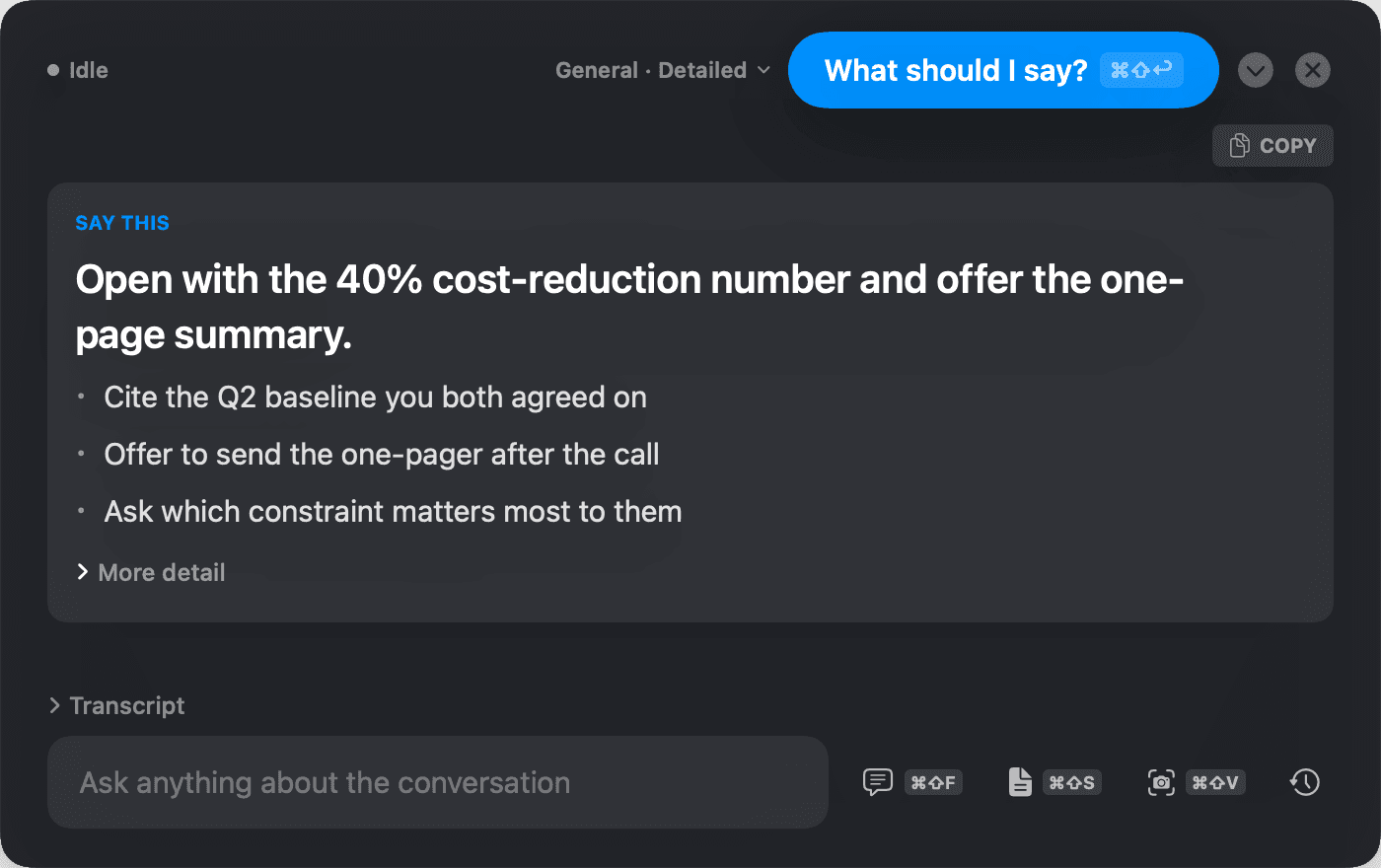
Glance at the overlay, say what it shows, and stay in the conversation — no alt-tabbing, no note-taking.
- Status pill — shows the overlay's current state (here, idle and ready).
- Preset label — General · Detailed, the active persona.
- ⌘⇧↩ chip — the shortcut for a new suggestion.
Full, current pricing lives on one page — no separate numbers to keep in sync here.
See pricingPRIVATE BY DESIGN
Built to stay out of sight
What happens on your screen stays on your screen — and you're one keystroke from clearing it.




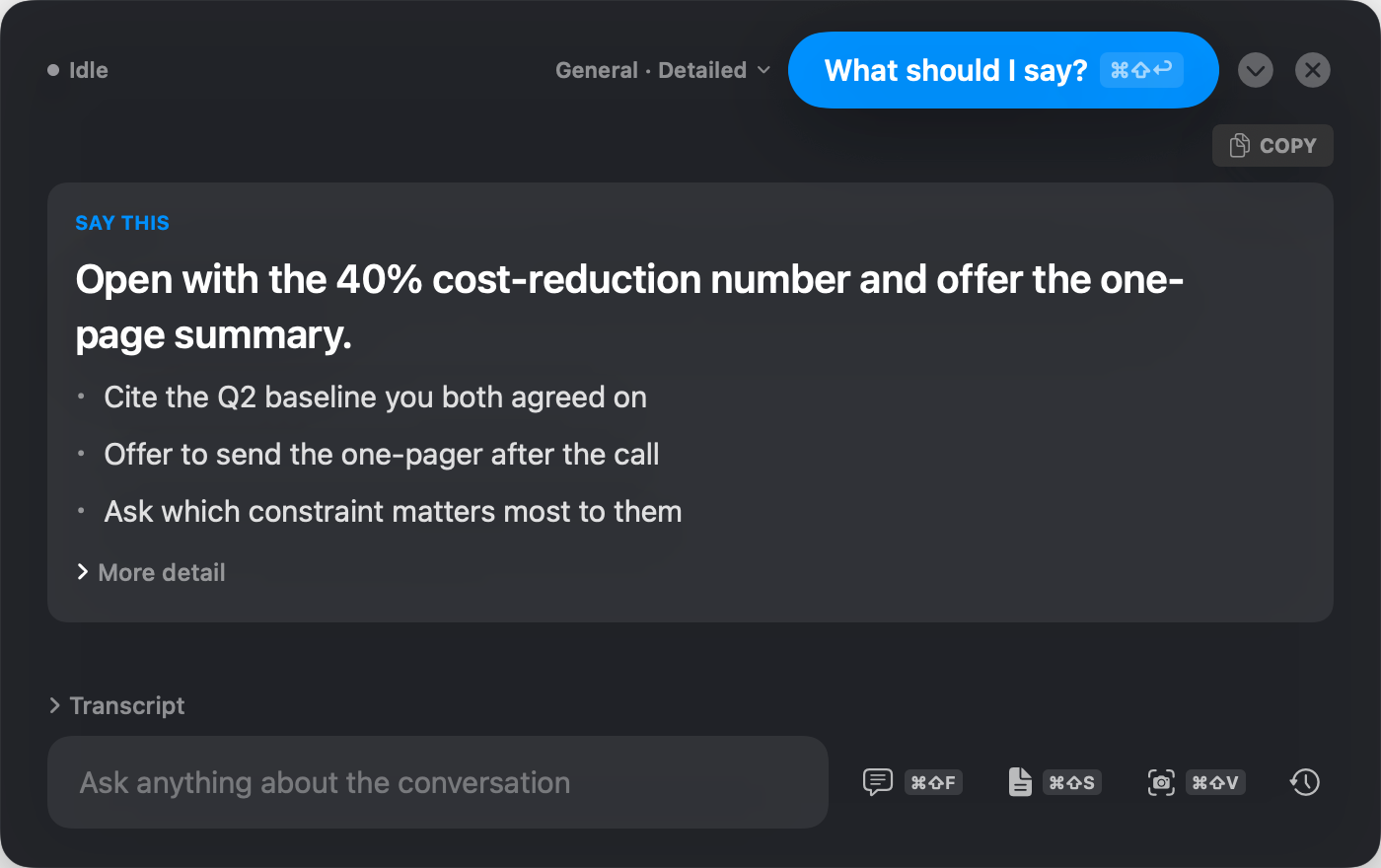
Illustration of the intended behavior — Zoom, Teams, and Meet build their screen share on the same macOS capture APIs the overlay opts out of.
Out of your screen shares and recordings
Swiffit's overlay uses macOS's built-in screen-capture exclusion — the same OS mechanism Zoom, Teams, and Meet rely on. In our tests it stayed out of screen shares and recordings; treat that as tested-not-guaranteed and verify with your own setup before a high-stakes call.
On-device transcription option
Choose local, on-device transcription so audio never has to leave your Mac.
One key clears the screen
Hit the panic key (⌘⇧E) and everything currently on screen clears instantly.
Get Swiffit Coach
Available now for macOS. 7-day money-back guarantee.
On-device transcription option
Choose local, on-device transcription so audio never has to leave your Mac.
One key clears the screen
Hit the panic key (⌘⇧E) and everything currently on screen clears instantly.